> ## Documentation Index
> Fetch the complete documentation index at: https://docs.cerulion.com/llms.txt
> Use this file to discover all available pages before exploring further.
# Cerulion Studio
> The desktop app you watch your robot in: live topics on a stage, the running graph, recordings, Hindsight, and an agent dock. Not open source — contact Cerulion for access.
Early access · Not open source
Cerulion Studio is not open source and has no public download. [Book 15 minutes with us](https://calendly.com/lakshay-cerulion/demo?utm_source=docs\&utm_medium=book) to get access. The [Cerulion CLI and runtime](https://github.com/cerulion-inc/cerulion) stay open source — recording, replay, and `--verify` all work without Studio.
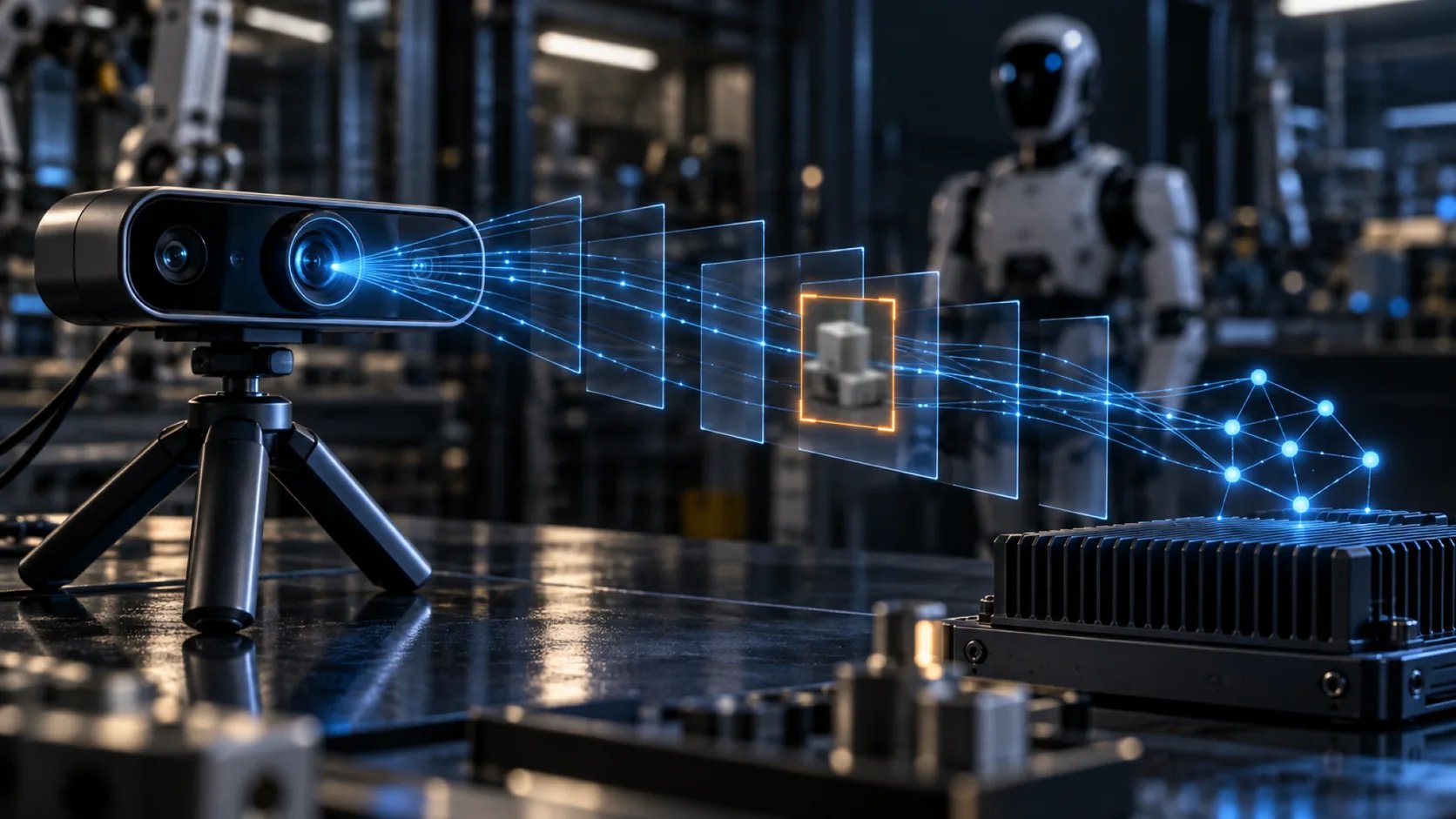 Cerulion Studio is the desktop app you watch your robot in. It connects to the graphs you run with the open-source `cerulion` CLI, so there is nothing to add to your graph for it: no visualization node, no config file, no script. Check a topic and it renders.
## What you can do in Studio
Check a topic in the sidebar and its frames render on the stage.
The Graph view shows the nodes `cerulion graph run` is running, with each node's rate and liveness.
Robots on your network appear under **Robots**. The robot ships raw bytes; decoding happens on your desk.
The Hindsight screen indexes an MCAP bag and names the moment the run went sideways.
## The stage
The stage is where live topics render. Camera frames, detections, and plots from the topics you check share one scene, and they update as the graph publishes.
Cerulion Studio is the desktop app you watch your robot in. It connects to the graphs you run with the open-source `cerulion` CLI, so there is nothing to add to your graph for it: no visualization node, no config file, no script. Check a topic and it renders.
## What you can do in Studio
Check a topic in the sidebar and its frames render on the stage.
The Graph view shows the nodes `cerulion graph run` is running, with each node's rate and liveness.
Robots on your network appear under **Robots**. The robot ships raw bytes; decoding happens on your desk.
The Hindsight screen indexes an MCAP bag and names the moment the run went sideways.
## The stage
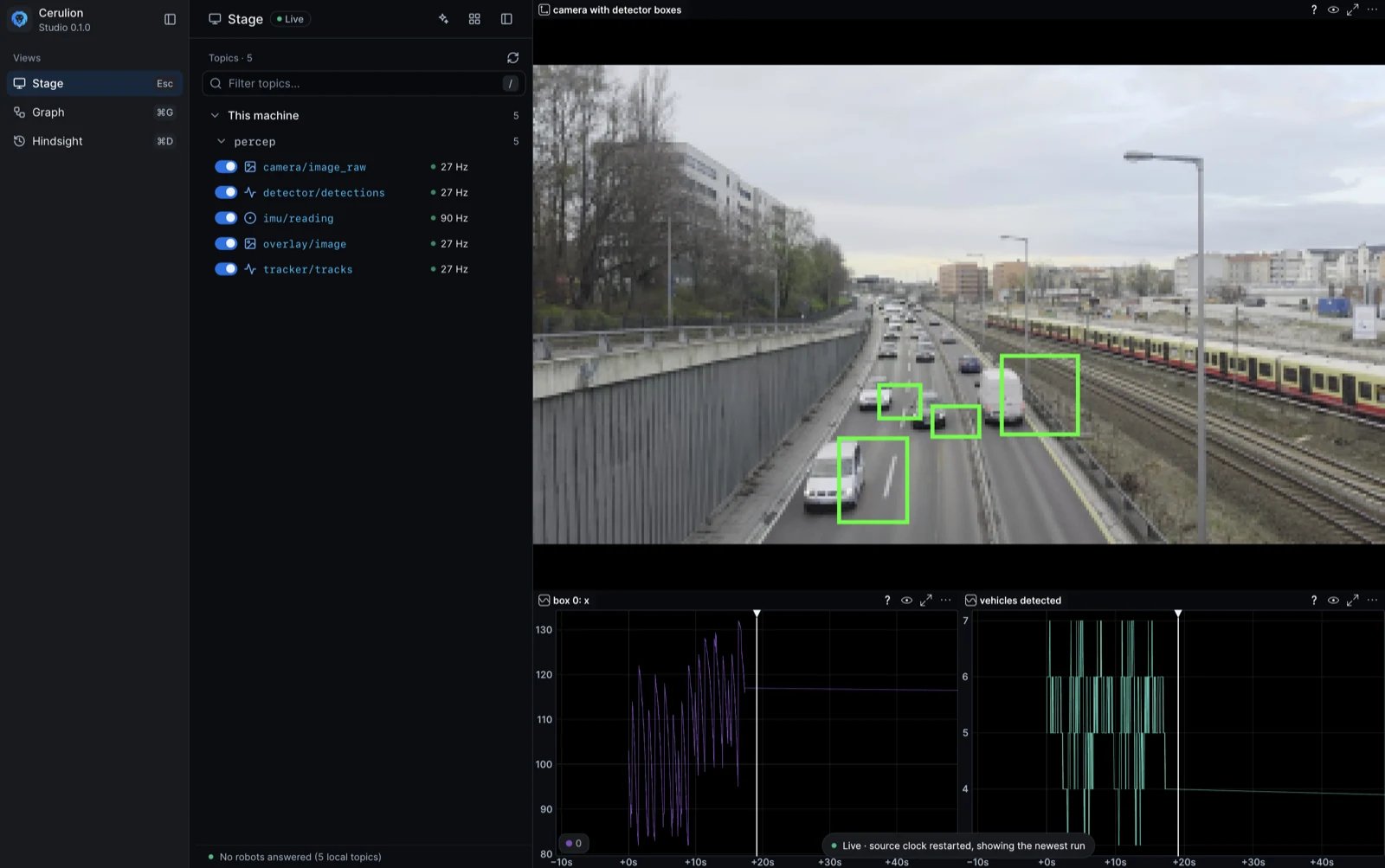
The stage is where live topics render. Camera frames, detections, and plots from the topics you check share one scene, and they update as the graph publishes.
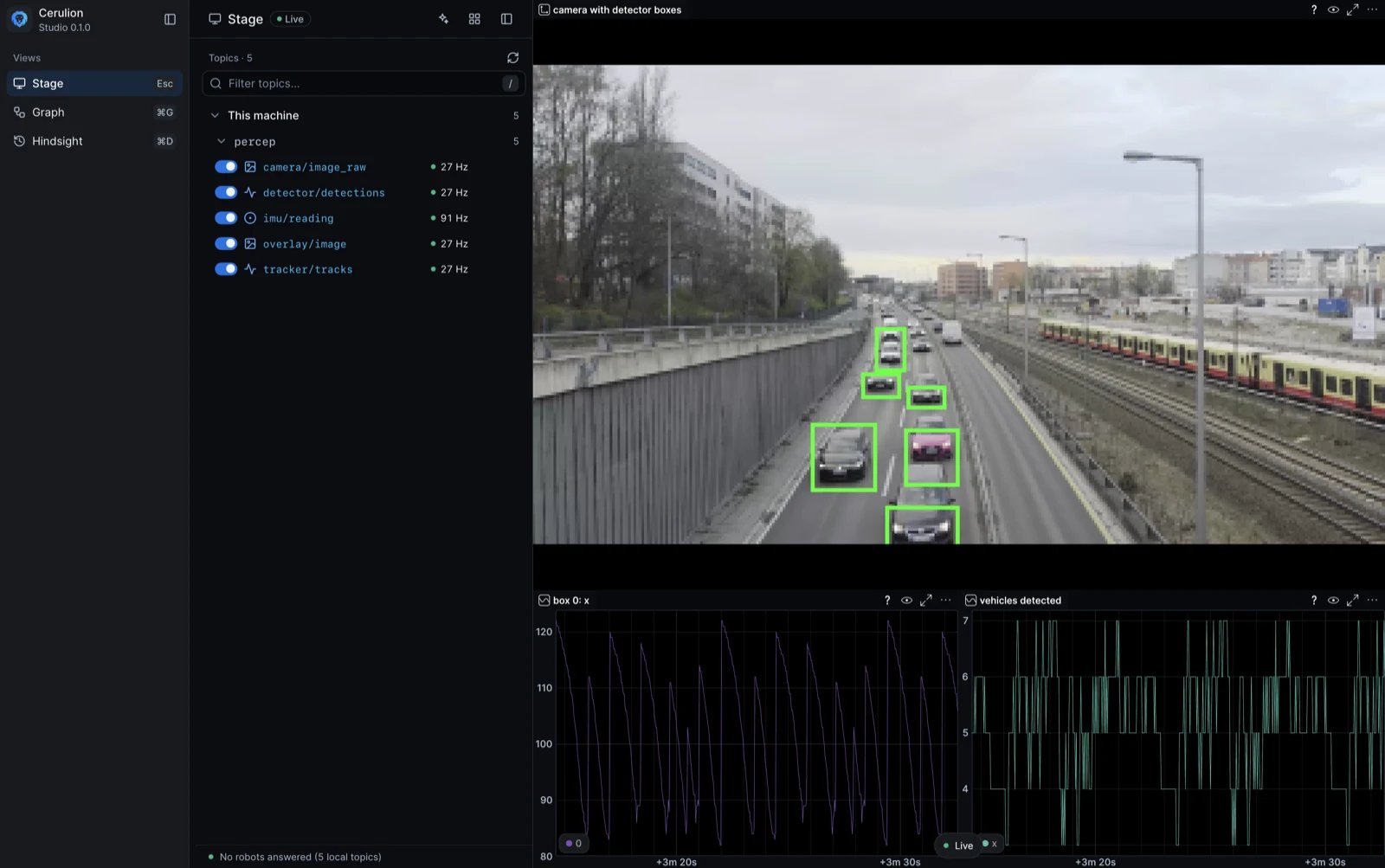 You see a fault on the stage while the graph runs. When a detector goes wrong, its boxes stop landing on the objects in the frame.
 To attach topics, watch a remote robot, or play a recording onto the stage, see [Visualize a running graph](/cerulion/guides/visualize-in-studio).
## The Graph view
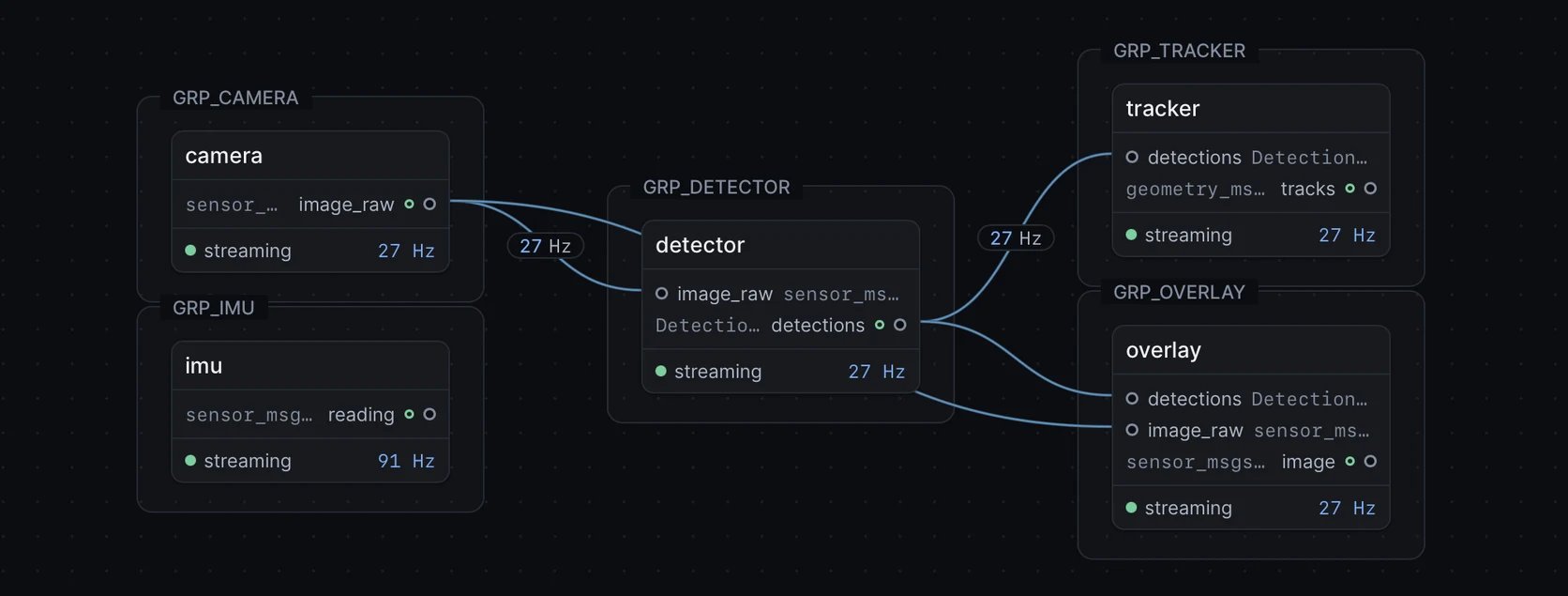
The Graph view (⌘ G) shows the graph that `cerulion graph run` is running on this machine or on a robot, read from that run's effective graph file. Each node shows its rate and whether it is alive. The view is read-only: you change a graph in its YAML and re-run it.
To attach topics, watch a remote robot, or play a recording onto the stage, see [Visualize a running graph](/cerulion/guides/visualize-in-studio).
## The Graph view
The Graph view (⌘ G) shows the graph that `cerulion graph run` is running on this machine or on a robot, read from that run's effective graph file. Each node shows its rate and whether it is alive. The view is read-only: you change a graph in its YAML and re-run it.
 ## Hindsight and the agent dock
The Hindsight screen (⌘ D) opens an `.mcap` recording, indexes it on your machine, and names the moment it went sideways, with the messages behind each moment. See [Hindsight](/cerulion/hindsight).
The agent dock (the sparkle icon, top right) is an AI agent you ask questions in, such as "why did the detector drift here?". On the Hindsight screen it answers with Hindsight's tools. Studio checks that each claim cites a real message from the recording, and it refuses an answer it cannot ground.
The agent dock uses your own Anthropic API key, which you add from the key icon in the dock, and it needs a network connection. The rest of Studio does not use it.
## Gotchas
* **Studio needs the `cerulion` CLI on your `PATH`.** It drives the same CLI you use in a terminal. [Install the CLI](/cerulion/installation) first, or set its path in the sidebar's settings.
* **Studio needs a Cerulion account.** You sign in when the app opens. A stored session keeps working offline for up to 30 days.
* **Studio is a macOS app.**
* **Studio shows a recording that `cerulion bag play` plays.** Use plain `bag play`, not `--resim`, to pace the stage. Only Cerulion recordings play this way; a ROS 2 or Foxglove sample MCAP does not.
* **The Hindsight screen needs the `hindsight` binary.** It is not inside the Studio app. Studio looks for it on your `PATH` and in the usual install folders, such as `~/.cargo/bin` and `/opt/homebrew/bin`.
## Get access
Studio is available to teams by request. Tell us about your robot and we'll set you up.
Book 15 minutes. Bring your robot, your graph, or a recording you want to investigate.
## Hindsight and the agent dock
The Hindsight screen (⌘ D) opens an `.mcap` recording, indexes it on your machine, and names the moment it went sideways, with the messages behind each moment. See [Hindsight](/cerulion/hindsight).
The agent dock (the sparkle icon, top right) is an AI agent you ask questions in, such as "why did the detector drift here?". On the Hindsight screen it answers with Hindsight's tools. Studio checks that each claim cites a real message from the recording, and it refuses an answer it cannot ground.
The agent dock uses your own Anthropic API key, which you add from the key icon in the dock, and it needs a network connection. The rest of Studio does not use it.
## Gotchas
* **Studio needs the `cerulion` CLI on your `PATH`.** It drives the same CLI you use in a terminal. [Install the CLI](/cerulion/installation) first, or set its path in the sidebar's settings.
* **Studio needs a Cerulion account.** You sign in when the app opens. A stored session keeps working offline for up to 30 days.
* **Studio is a macOS app.**
* **Studio shows a recording that `cerulion bag play` plays.** Use plain `bag play`, not `--resim`, to pace the stage. Only Cerulion recordings play this way; a ROS 2 or Foxglove sample MCAP does not.
* **The Hindsight screen needs the `hindsight` binary.** It is not inside the Studio app. Studio looks for it on your `PATH` and in the usual install folders, such as `~/.cargo/bin` and `/opt/homebrew/bin`.
## Get access
Studio is available to teams by request. Tell us about your robot and we'll set you up.
Book 15 minutes. Bring your robot, your graph, or a recording you want to investigate.